Here are some interaction generators I created with AI while working on some courses. At first I started with just creating interactions, but I knew I wanted to be able to reuse them and my team would probably like to use them as well. At first I thought that I should try to make them easy to update through code, but then decided to see if I can make a generator panel and then export the results as an HTML. Here are the results. Feel free to use them to create your own interactions for the courses you built. For those of you that are curious. Some of them have the capability to update a variable in Storyline 360 and can be used for graded (freeform) question slides.
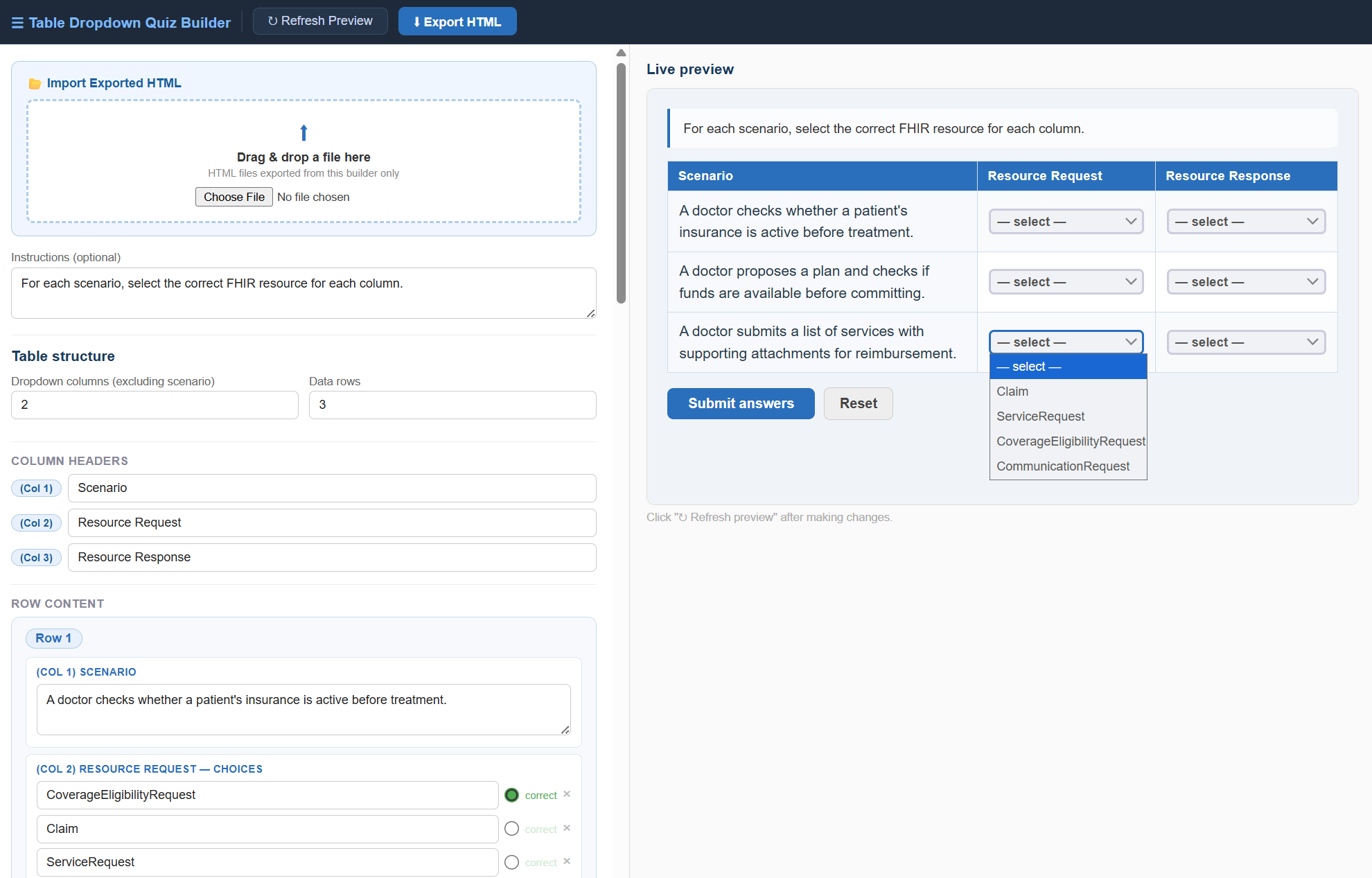
Table Dropdown Quiz Builder
This no-code generator lets you build scenario-based dropdown quiz interactions for Storyline 360 — no coding required. Set up a table with as many rows and columns as you need, write a scenario for each row, and configure dropdown answer choices for each column. Mark the correct answer per cell, customize colors, fonts, and layout, then export a single self-contained HTML file ready to drop into a Storyline Web Object.
Built-in Storyline 360 integration lets you pass a True/False or points-based result directly to a Storyline variable on submit. A round-trip import feature means you can reload any previously exported file back into the builder for editing — no need to start over.
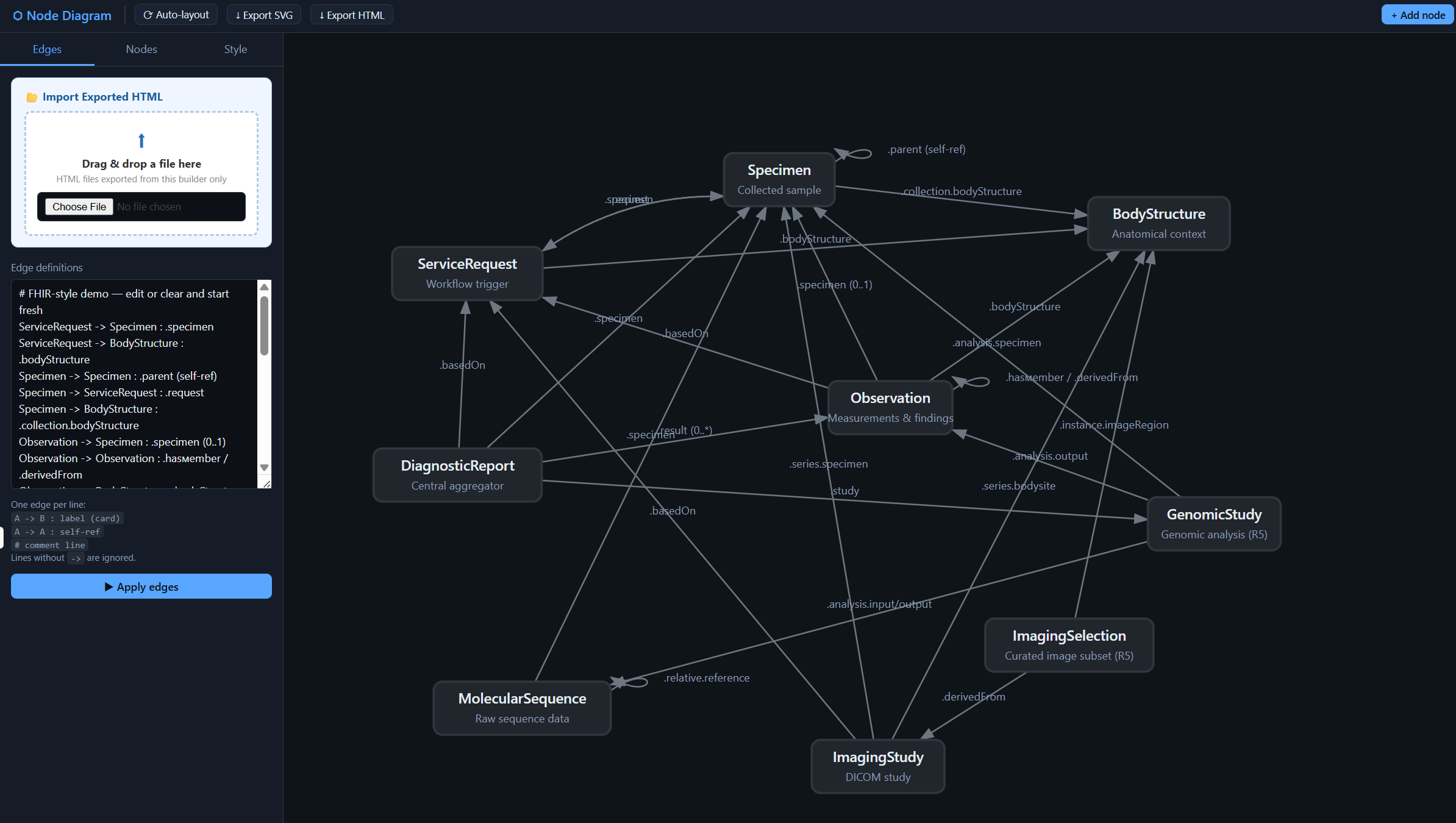
Node Connection Diagram Generator
This tool lets you build interactive node connection diagrams entirely in your browser — no software to install, no accounts to create. Define your nodes and relationships using a simple text-based format (NodeA -> NodeB : label), customize colors and font sizes, and arrange nodes by dragging them into position. Each node can store a header and descriptive text that appears in a popup when clicked, making diagrams ideal for exploring complex systems where readers need more context than a label alone can provide.
Exported diagrams are fully self-contained HTML files that work anywhere — embed them as web objects in e-learning tools like Articulate Storyline 360, host them on a website, or share them as a standalone file. No internet connection, frameworks, or external dependencies are required at runtime. Diagrams support zooming, panning, drag-to-reposition, and clickable node popups out of the box, giving end users an interactive experience whether they’re exploring a software architecture, a business process, a data model, or any other system built on connected components.
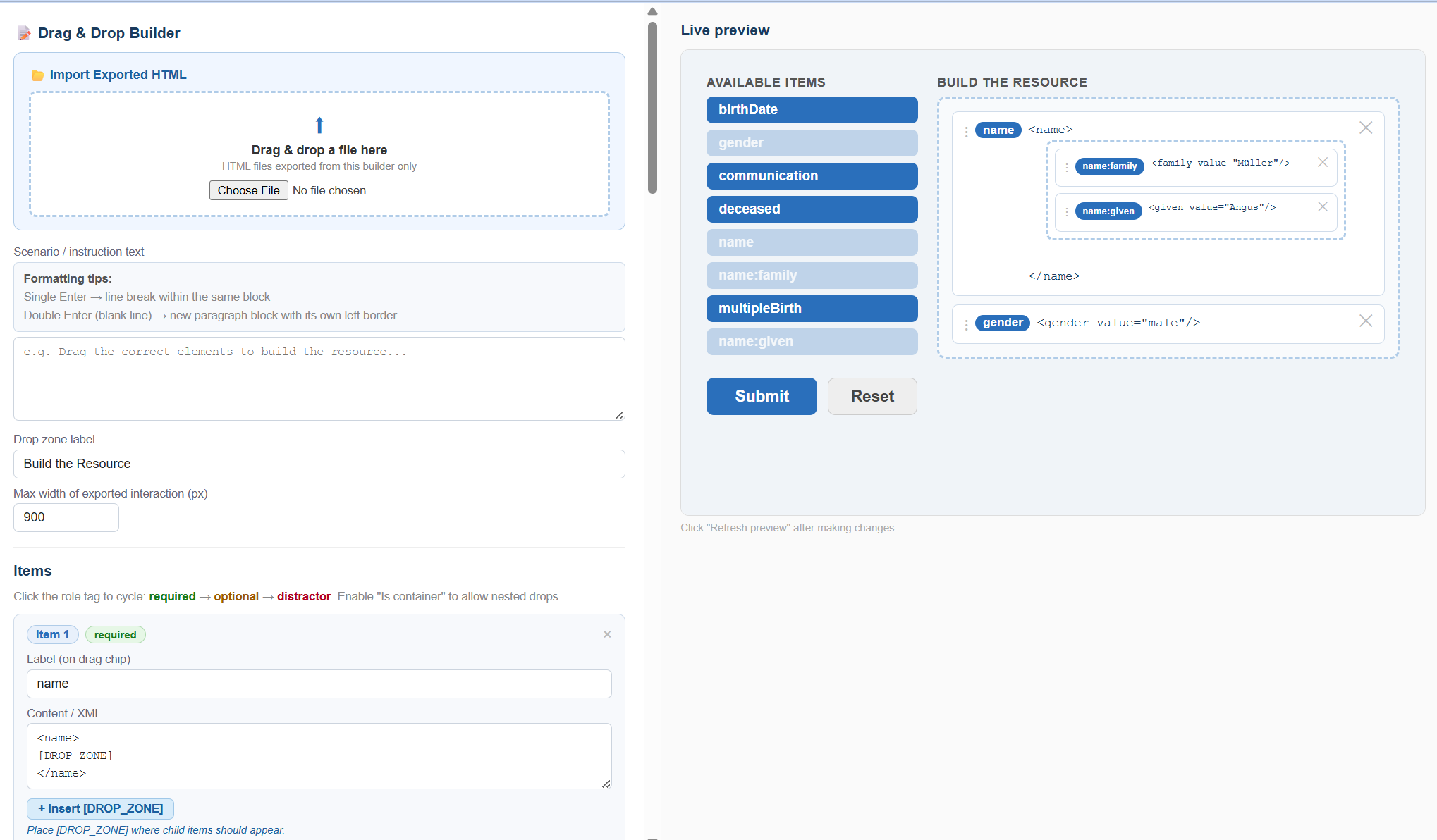
Drag & Drop Resource Builder
The builder supports a flexible item system where each draggable element carries a label, a content block, and a role — required, optional, or distractor. Required items must be placed correctly for the learner to succeed. Optional items can earn bonus points if placed correctly but won’t block completion. Distractors are deliberately incorrect choices that challenge the learner to think critically. All item roles are hidden from the learner until they click Submit, preventing the interface itself from giving away the answers.
What sets this builder apart is its support for nested containers — draggable items that expand to reveal their own internal drop zone. Imagine asking a learner to assemble a project plan where a “Planning Phase” card opens up to accept individual tasks, or a “Contact Details” record that needs specific fields dropped inside it. Child items can be placed either inside their designated container or at the top level, and feedback on submission tells the learner exactly where things went wrong.
Additional features include optional sort order validation (checking that items are placed in the correct sequence within each group), automatic shuffling of the item pool on load, customisable colours and typography, a Reset button, and full Articulate Storyline 360 variable integration for pass/fail or scored outcomes. Exported files are fully self-contained — no internet connection, no frameworks, no dependencies — making them reliable across any platform that supports web objects or iframes.
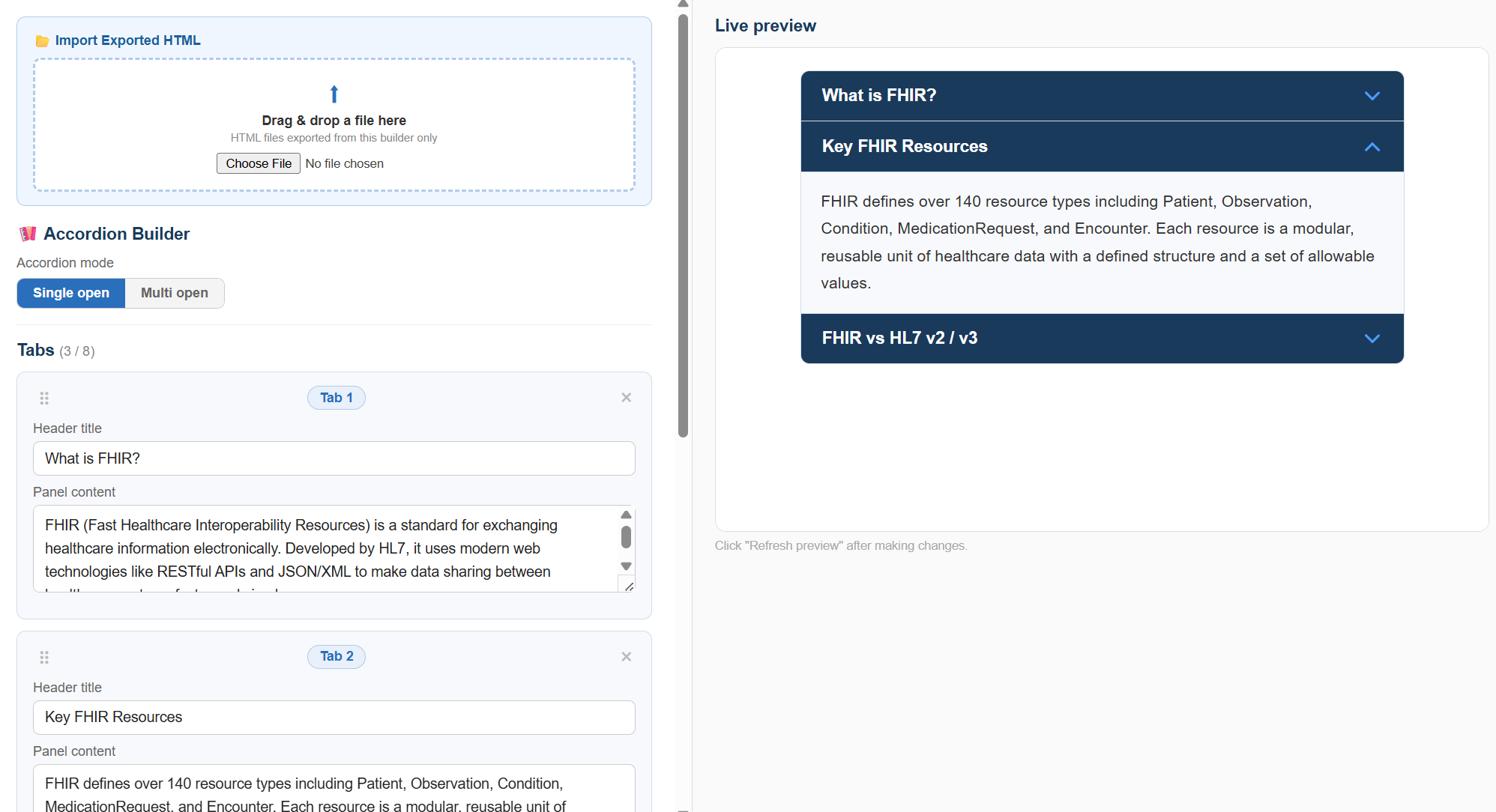
Accordion Builder
Accordion Builder is a no-code authoring tool that lets you create clean, interactive accordion interactions and export them as fully self-contained HTML files — no frameworks, no dependencies, no server required. Simply add up to eight tabs, write a header title and body content for each, and choose whether the accordion allows one panel open at a time or multiple. A live preview updates on demand so you can see exactly how your interaction will look before exporting.
The exported file is designed for embedding in e-learning platforms like Articulate Storyline 360 as a web object, but works equally well on any webpage or LMS that supports HTML embeds. It’s ideal for presenting layered information in a compact, scannable format — think process steps, FAQs, glossary terms, policy summaries, or feature breakdowns — anywhere you want learners or users to explore content at their own pace without leaving the page.
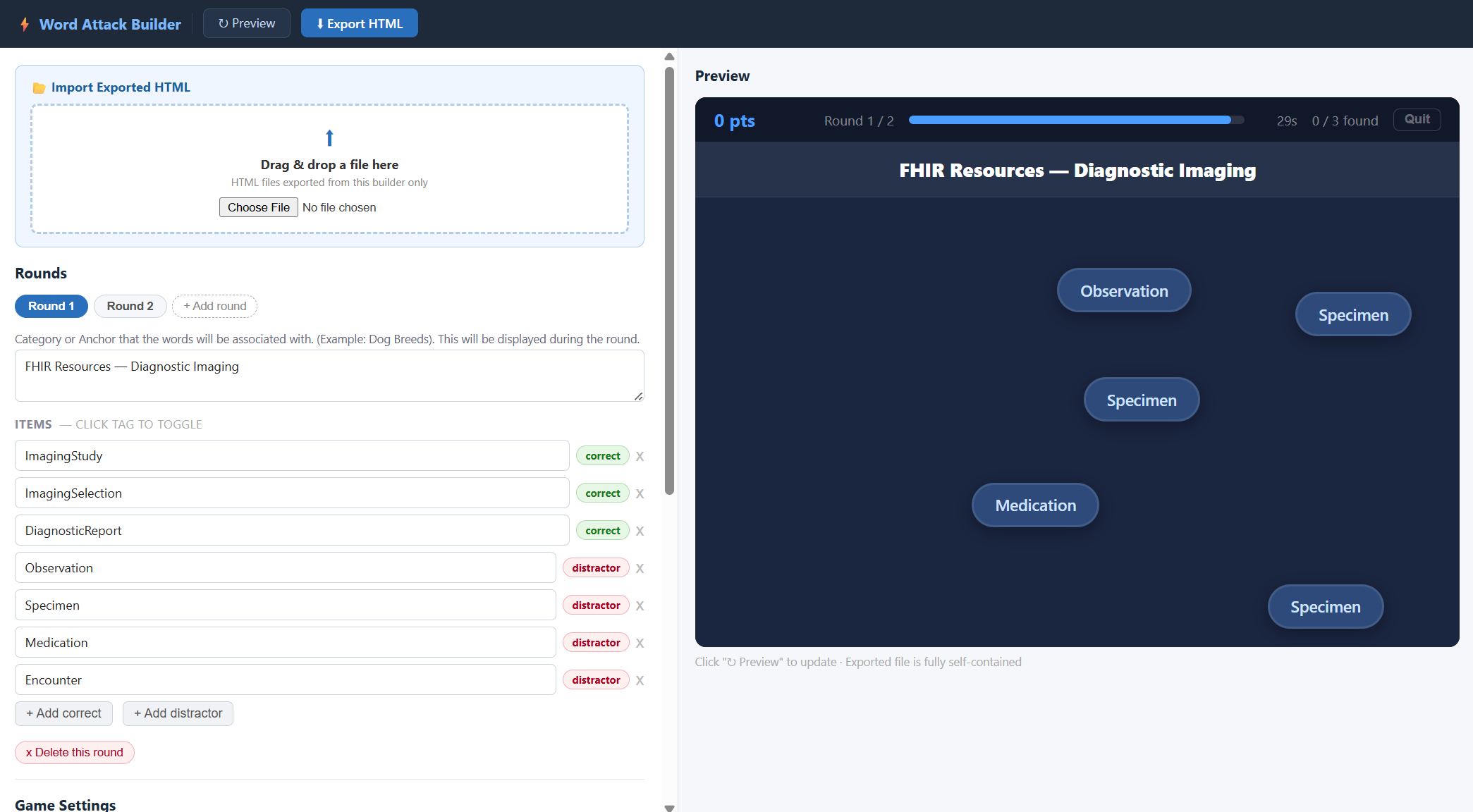
Word Attack
Word Attack is a fast-paced, click-based recognition game designed for corporate learning and training environments. Players are shown a category or concept — the “anchor” — and must quickly click every word or phrase that belongs to it as items flash across the screen, while avoiding distractors. With configurable scoring, time bonuses, and multi-round support, it creates a sense of urgency that reinforces rapid recall and category recognition in a way that traditional quizzes simply can’t match.
The Word Attack Builder makes it easy for instructional designers and trainers to create and export fully self-contained game files — no coding required. Define your categories, add your correct items and distractors, adjust timing and scoring, and export a single HTML file ready to embed in Storyline 360, a learning management system, or any web-based platform. It works equally well for compliance training, product knowledge, onboarding, terminology drills, or any scenario where learners need to quickly distinguish “belongs” from “doesn’t belong.”
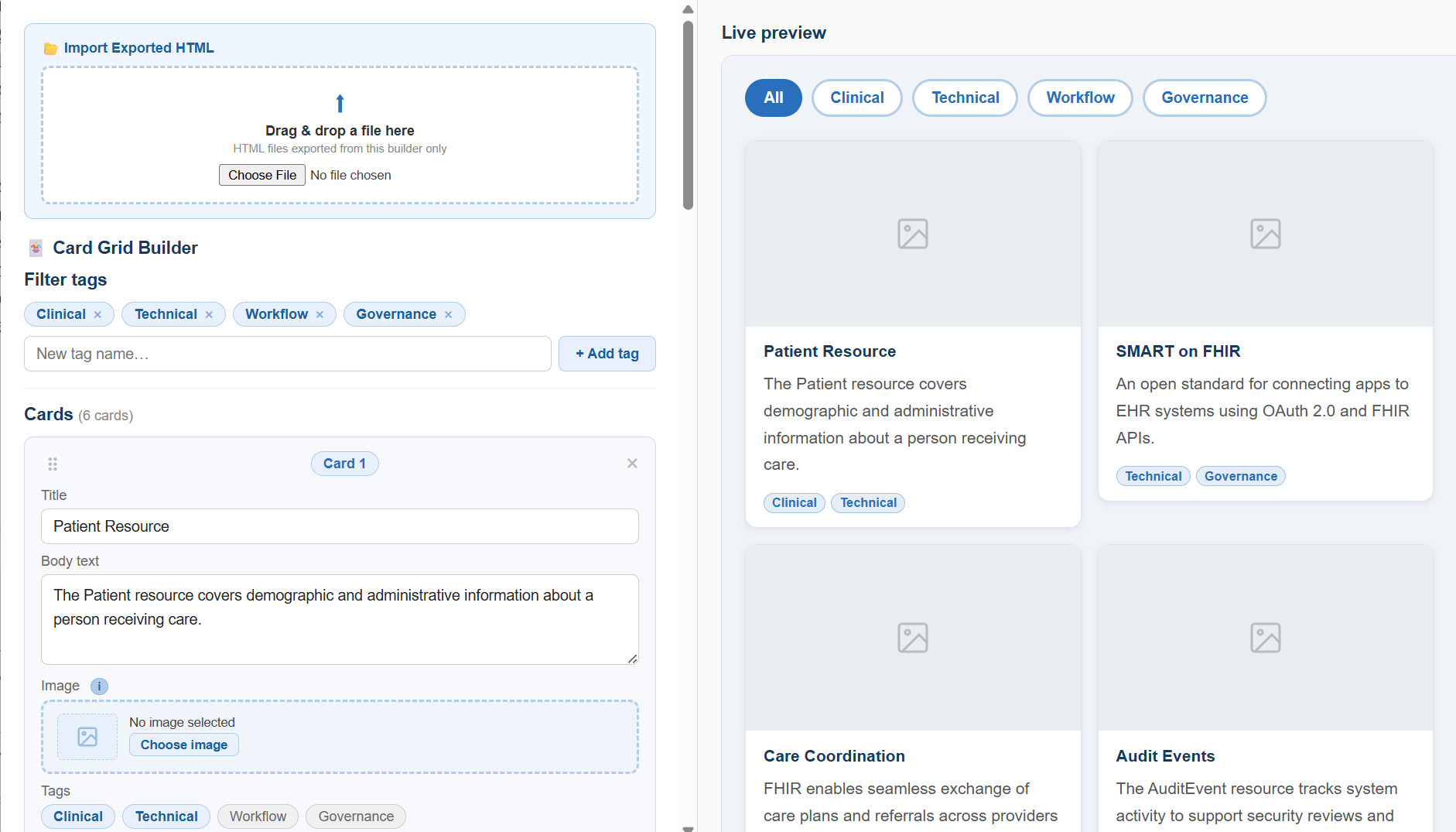
Filterable Card Grid Builder
The Filterable Card Grid Builder is an in-browser authoring tool that lets you create a polished, interactive card grid without writing a single line of code. Add as many cards as you need — each with a title, body text, an optional uploaded image, and one or more category tags — then customize the layout and color scheme to match your brand. A live preview updates on demand so you can see exactly what learners will see before you export.
With one click, the tool exports a fully self-contained HTML file with no external dependencies — everything including images is baked in. The exported file displays a row of filter buttons that learners use to browse cards by category, with smooth show/hide transitions as they switch between views. It’s designed to embed seamlessly as a web object in Storyline 360 and other e-learning platforms, making it ideal for reference content, glossaries, resource libraries, product catalogs, or any scenario where learners benefit from being able to browse and filter a set of items.
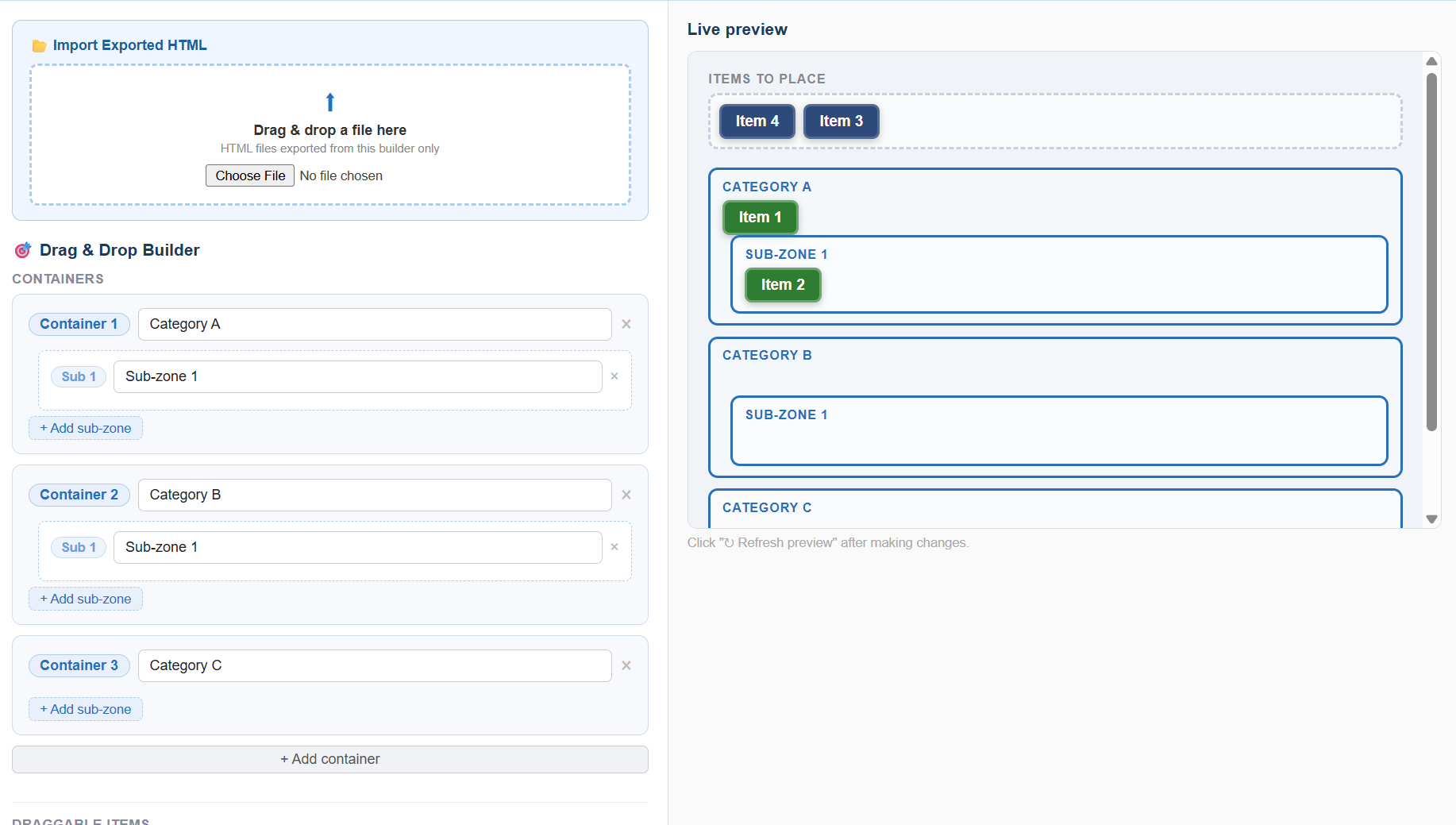
Drag & Drop Interaction Builder
Drag & Drop Interaction Builder lets you create fully self-contained drag-and-drop sorting and categorisation activities — no coding required. Define your own drop zones, add draggable items, and assign each item to its correct target. You can optionally enable nested sub-zones for more nuanced categorisation tasks, choose whether incorrect items snap back to the starting area or disappear with a visual cue, and control whether all items are shown at once or revealed one at a time. A built-in style panel lets you customise colours, fonts, and layout to match your brand or course design.
The exported file is a single, dependency-free HTML file that works in any browser and embeds cleanly into e-learning platforms like Articulate Storyline 360 as a web object. Optional Storyline variable integration lets you pass a pass/fail result or a point score back into your course, enabling conditional branching, scoring, and completion tracking without any additional development. Whether you’re building compliance training, onboarding modules, technical skills assessments, or knowledge checks, this tool gives you a polished, interactive activity in minutes.
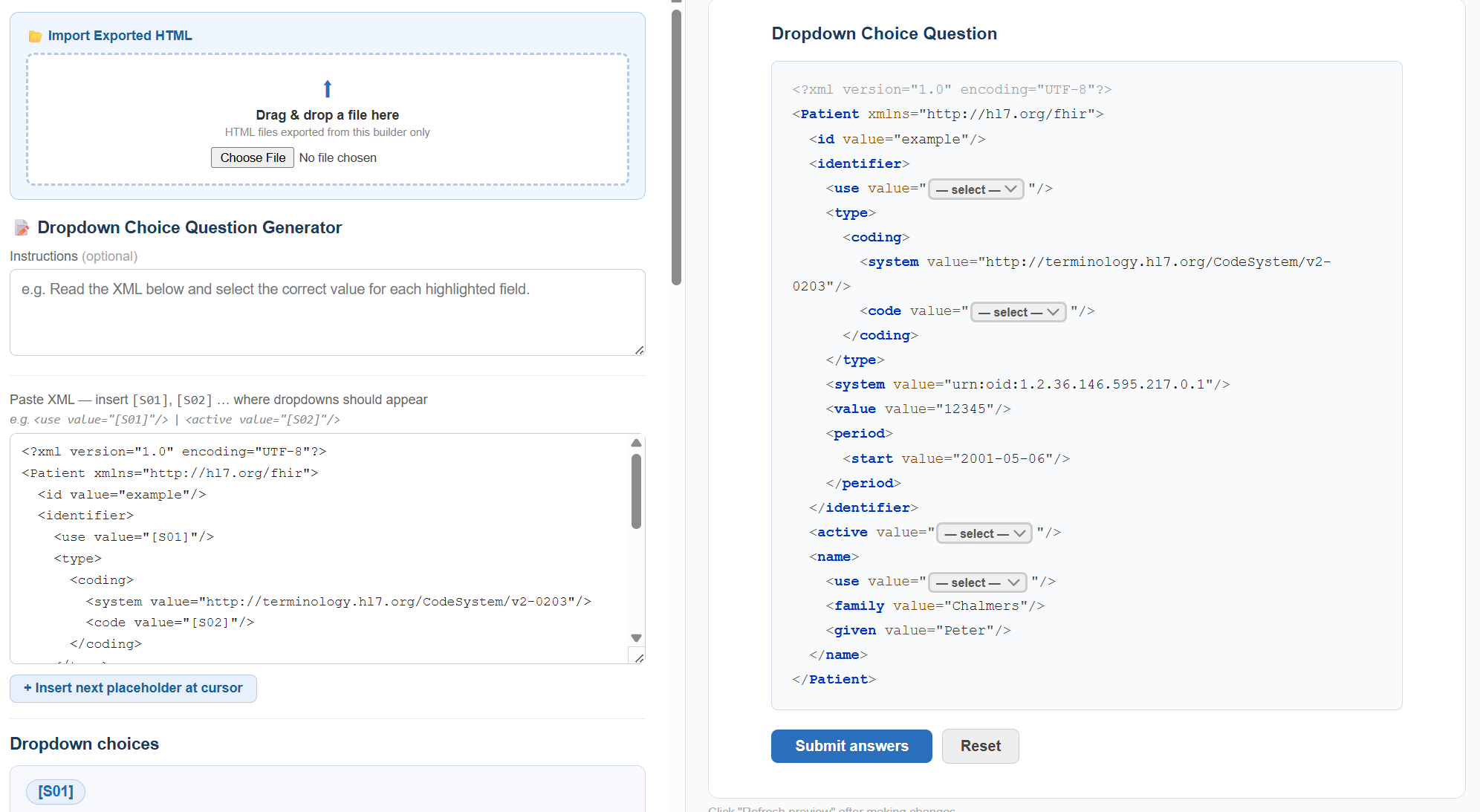
Dropdown Choice Question Generator
This tool lets you build interactive dropdown-based quiz interactions directly from structured text or code. Paste in your content, place placeholder tags where you want dropdown menus to appear, define the answer choices and mark the correct one, then export a fully self-contained HTML file ready to embed anywhere. The exported file requires no internet connection, no frameworks, and no external dependencies.
An optional Storyline integration lets you pass the learner’s result — either a true/false completion flag or a numeric score — directly into a Storyline variable, so you can trigger slide logic like feedback layers or conditional navigation based on how the learner performed.
How to import the HTML into Storyline 360
How the export works
- Toggle Export result to a Storyline variable on before exporting — when off, no Storyline code is included in the file.
- Set the variable name to match exactly what you’ve named it in Storyline (case-sensitive).
- True / False mode — sets the variable to
trueif all answers are correct,falseotherwise. - Points mode — sets the variable to the total points scored (e.g. 3 correct × 10 pts = 30).
- The variable is written on Submit only when all questions are answered — partial submissions do not overwrite the variable.
- Uses
window.parent.GetPlayer().SetVar(). Outside Storyline it logs a console warning but won’t break.
Setting up the variable in Storyline 360
- Open your Storyline project and go to Home → Variables (or press Ctrl+Shift+V).
- Click Create a new variable.
- True/False mode: Type =
True/False, default =False. - Points mode: Type =
Number, default =0. - Name it exactly as entered above — spelling and capitalisation must match.
- Insert a Web Object on your slide: Insert → Web Object, pointing to the exported HTML file.
- In Web Object properties, enable “Load web object automatically” and “Display in slide.”
- Add a trigger elsewhere on the slide that reads the variable — e.g. show a layer when
quizResult == True.
GetPlayer() only works inside a Storyline published preview or web server — not when the HTML file is opened directly from your desktop.