
I just wanted to share a quick update to the Dynamic Progress Bar. I’ve updated the JavaScript code to add the progress in text. It will now show “Progress: 25%” (or what the current percentage is) in front of the progress bar. This feature was requested by a fellow ID and I had to give it a try.
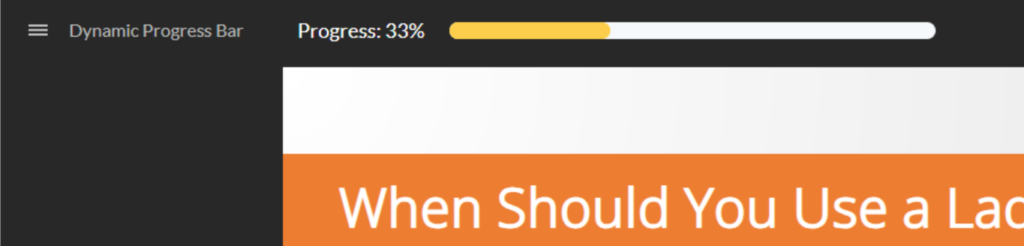
The steps are the same as the previous tutorial. The only thing that has changed is the main JavaScript code used.
Previous Tutorial: https://youtu.be/RH6DWPHwVAs?si=5XPMtNAd9qm1-AOW
Blog on the Tutorial: https://visual-e-learning.com/2023/10/09/how-to-add-a-dynamic-progress-bar-to-your-storyline-course-player/
Video on the updates: https://youtu.be/AXbWU6k6g7s
New Javascript Code:
/* updates with text percentage */
/* CHANGE THESE VARIABLES */
const container = document.getElementById("links-right"); // Container for the buttons
const bgColour = "#F6F9FB"; // BACKGROUND COLOUR.
const barColour = "#FCCE4B"; // PROGRESS COLOUR.
const compColour = "#19BB32"; // COMPLETED COLOUR (will not change if empty).
const borderRad = "100px"; // BORDER RADIUS.
const progress = "Progress"; // PROGRESS VARIABLE (Case Sensitive).
/* DO NOT CHANGE BELOW UNLESS INTENDED */
const player = GetPlayer();
let scale = player.GetVar(progress);
let testElement = !!document.getElementById("pBar"); // Test to see if the bar already exists.

// Function to create and update the progress bar text
function updateProgressBarText() {
  const progressBarText = document.getElementById("progressBarText");
  if (progressBarText) {
    progressBarText.textContent = "Progress: " + scale + "%";
  }
}

if (!testElement) { // If bar doesn't exist
  // Create a container for the entire element
  let progressBarContainer = document.createElement("div");
  progressBarContainer.id = "progressBarContainer";
  //progressBarContainer.style.display = "flex";
  //progressBarContainer.style.alignItems = "center";
 // progressBarContainer.style.justifyContent = "flex-end";
  //progressBarContainer.style.flexDirection = "row-reverse";
  progressBarContainer.style.height = "15px";
  progressBarContainer.style.transform = "translate(20px,0px)"; // Adjust transform if needed
    // Create a second container for the Progress Bar
  let progressBarContainer2 = document.createElement("div");
  progressBarContainer2.id = "progressBarContainer2";
  progressBarContainer2.style.display = "flex";
  progressBarContainer2.style.alignItems = "center";
  progressBarContainer2.style.justifyContent = "flex-end";
  progressBarContainer2.style.flexDirection = "row-reverse";
  progressBarContainer2.style.height = "15px";
  progressBarContainer2.style.transform = "translate(140px,3px)"; // Adjust transform if needed


  // Create the background element for the Progress Bar
  let bgBar = document.createElement("div");
  bgBar.id = "bgBar";
  bgBar.style.width = "100%";
  bgBar.style.height = "100%";
  bgBar.style.backgroundColor = bgColour;
  bgBar.style.borderRadius = borderRad;

  // Create the progress element of the Progress Bar
  let pBar = document.createElement("div");
  pBar.id = "pBar";
  pBar.style.width = scale + "%";
  pBar.style.height = "100%";
  pBar.style.backgroundColor = barColour;
  pBar.style.borderRadius = borderRad;
  pBar.style.position = "absolute";

  // Create an element to display the progress percentage as text
  let progressBarText = document.createElement("span");
  progressBarText.id = "progressBarText";
  progressBarText.textContent = "Progress: " + scale + "%"; // Update text content initially

  // **Fix 1: Set styles within the Javascript for better control**
  progressBarText.style.fontSize = "large"; // Adjust font size as needed
  progressBarText.style.color = "white"; // Set text color
  progressBarText.style.marginLeft = "5px"; // Adjust margin for spacing
  progressBarText.style.position = "absolute";

  // Set the max width for the progress bar (e.g., 300px)
  progressBarContainer.style.maxWidth = "20%";

  // Insert the background and progress elements into the container
  progressBarContainer.appendChild(progressBarText); // Add the text element
  progressBarContainer2.appendChild(bgBar);
  progressBarContainer2.appendChild(pBar);


  // Insert the progressBarContainer into the "links-right" element
  container.appendChild(progressBarContainer);
  progressBarContainer.appendChild(progressBarContainer2);

  // Check and set the display property for the "links-right" element
  const linksRightDisplayStyle = window.getComputedStyle(container).getPropertyValue("display");
  if (linksRightDisplayStyle === "none") {
      container.style.display = "block";
  }
} else { // If it does exist
  document.getElementById('pBar').style.width = scale + "%"; // Update the width
  updateProgressBarText(); // Update the text content
}

if (scale == 100 && compColour) {
  document.getElementById('pBar').style.backgroundColor = compColour;
}



thank you for all these insights. I have tried this configuration and it works but I have an issue as I have created a training with two languages. First slide is actually the “choose your language” slide so if I choose English the only slides that will be done are the English ones but not the other languages.
It is different from the optional explanation you made in your other video as the slides are not optional but just if I choose one then the others won’t need to be seen but it either one or the other at the beginning.
I was wondering if this could be a good topic for you to explain to your audience as I cannot find a solution for the time being…
Thank you anyway as it is a good option for single language trainings.
Alex
A possible solution is to include both slides in the progress variable, but then subtract the number of slides from the ones that don’t need to be counted. If branching scenario is “A”, and “B” has 6 slides, add a trigger to subtract that amount before the javascript function references the progress variable.